
Install K-YOU
Four steps, about ten minutes. You only copy files into your game folder, nothing is installed on Windows.
Download K-YOUv0.5 Beta · 19 KB · Windows
- ~10 minutes
- 4 steps
- No account needed
Before you start
Requirements
- GTA San Andreas PC, version 1.0 US. Steam and Rockstar Launcher copies need a downgrade to 1.0 first. The Definitive Edition isn't supported.
- Windows 11. K-YOU was developed and tested on it. Windows 10 should work but hasn't been tested yet.
- A music player. Spotify is best; YouTube Music, a browser tab or any player in Windows' media controls also works.
K-YOU is in beta. It runs well on the setup it was built on, and other setups are still being tested. Found a problem? Tell us
- Find your game folder: the one that has
gta_sa.exein it. Every step below happens there. - Back it up. Copy the whole folder somewhere safe. If anything goes wrong, you put it back.
Already run mods with CLEO, Mod Loader or SilentPatch? You already have an ASI loader. Skip step 1.
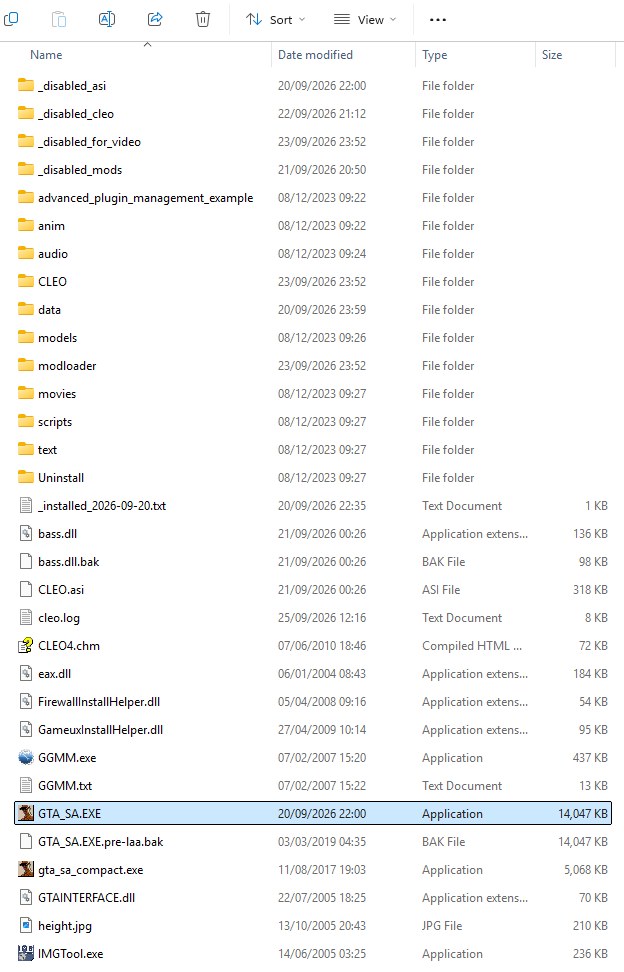
1Step 1 / 4
ASI loader
Lets the game load plugins. MoonLoader is one.
Skip if you already run CLEO, Mod Loader or SilentPatch.
- 1Open the Ultimate ASI Loader releases page (by ThirteenAG).
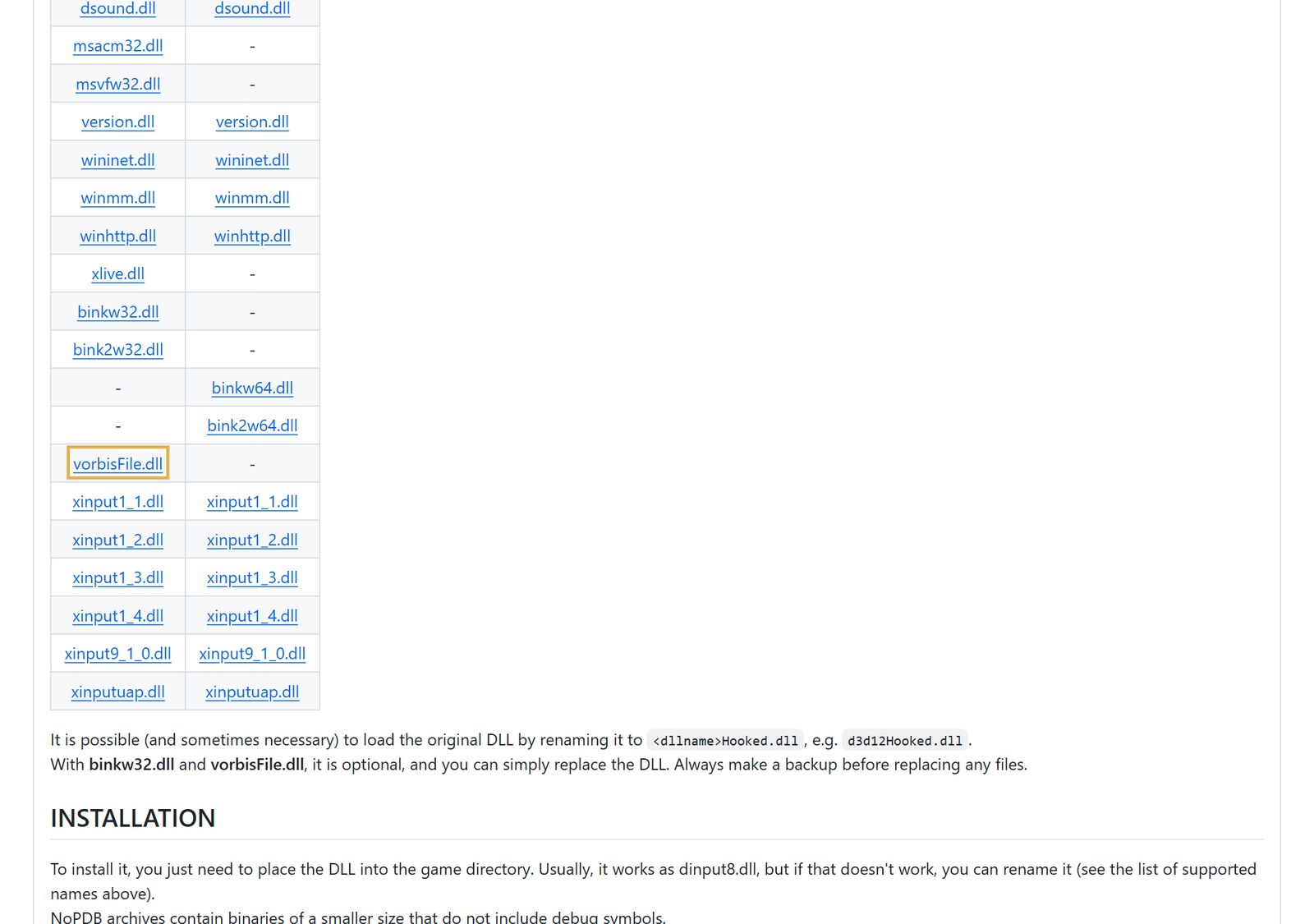
- 2The latest release lists many files. You need exactly one:
vorbisFile.dllin the Win32 column. Ignore all the others, they're for other games. - 3In your game folder, rename the existing
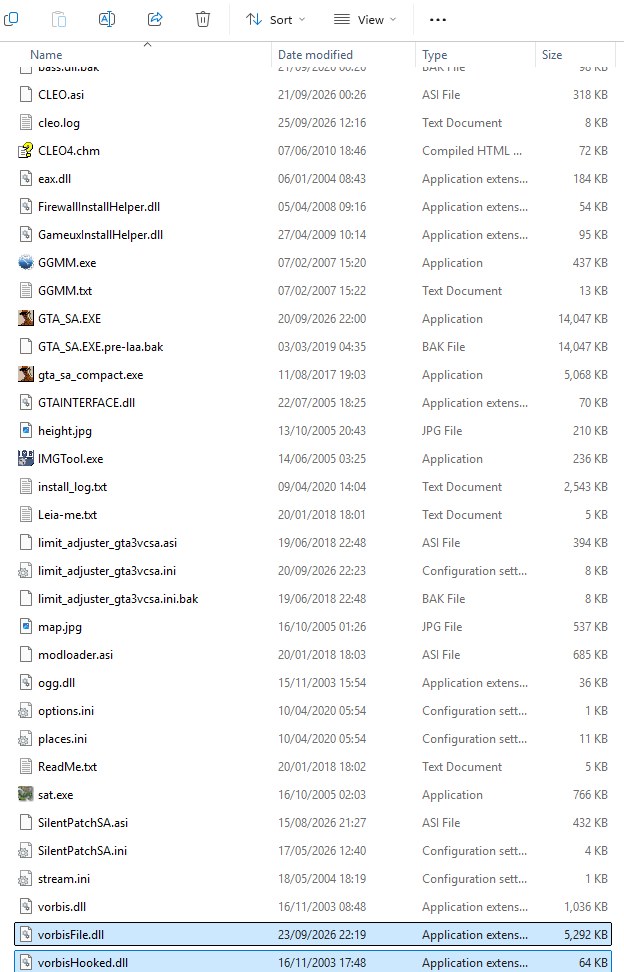
vorbisFile.dlltovorbisHooked.dll. That keeps the original as a backup, and the new loader calls it. - 4Put the downloaded
vorbisFile.dllin the same folder.
2Step 2 / 4
MoonLoader
The script engine K-YOU runs on.
- 1Download the MoonLoader zip straight from the official site: blast.hk/moonloader/download.php?archive. The link starts the download at once, so you don't have to find your way around their Russian page.
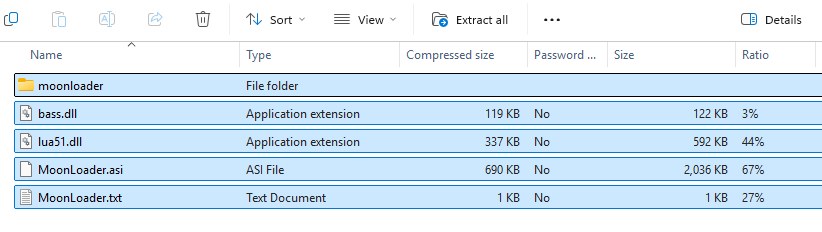
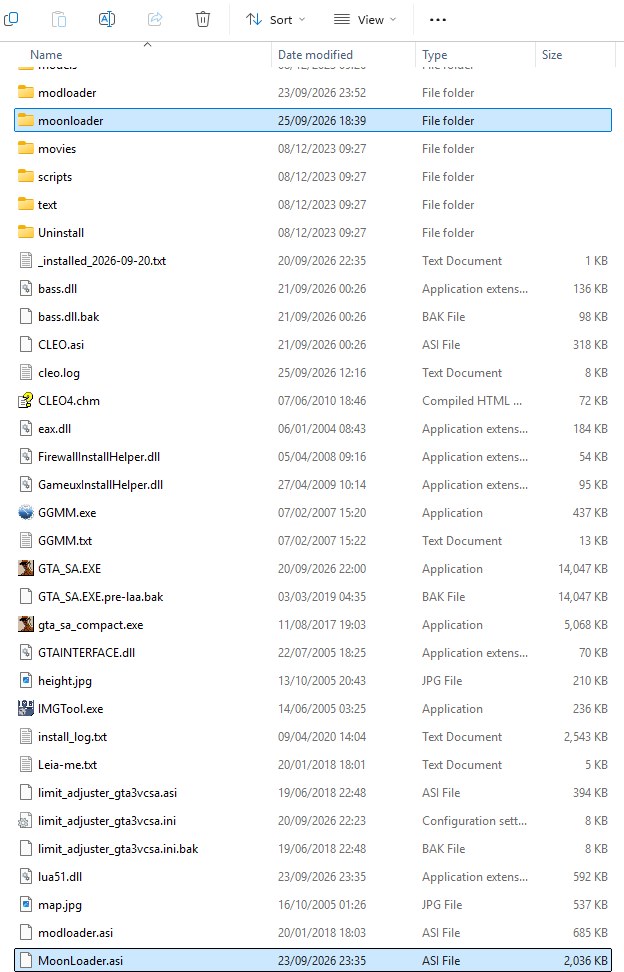
- 2Extract everything in the zip into your game folder.
- 3If Windows asks to overwrite
bass.dlland you already have one, answer No. CLEO ships a newer version.
Get the zip archive, not the setup installer. K-YOU was tested with MoonLoader v.026.5.
3Step 3 / 4
DirectX 9
MoonLoader needs one old DirectX file, d3dx9_43.dll.
Most PCs already have it. Try the game first and come back here only if K-YOU doesn't show up.
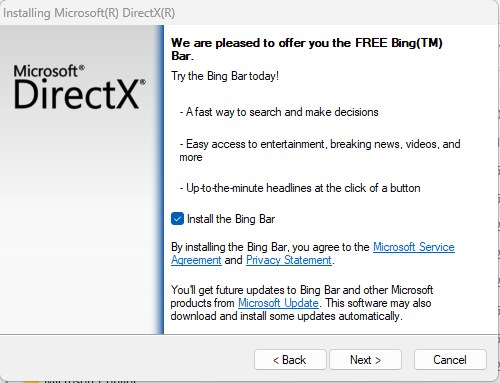
- 1Download Microsoft's DirectX End-User Runtime Web Installer and run it.
- 2One screen offers to also install the Bing Bar. Untick that box. It isn't needed.
- 3Finish the installer. No restart needed.
4Step 4 / 4
K-YOU
The mod itself: one small text file.
- 1Open the K-YOU zip you downloaded.
- 2Copy the
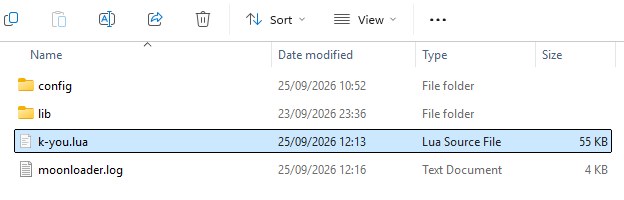
moonloaderfolder from it into your game folder. If Windows asks to merge folders, answer Yes.
Check your folder
Your game folder should now contain these, along with everything that was already there:
GTA San Andreas
- gta_sa.exe
- vorbisFile.dllstep 1
- vorbisHooked.dllstep 1
- MoonLoader.asistep 2
- lua51.dllstep 2
- moonloader
- libstep 2
- k-you.luastep 4
Play
- 1Open your music player. Spotify is best. Paused is fine.
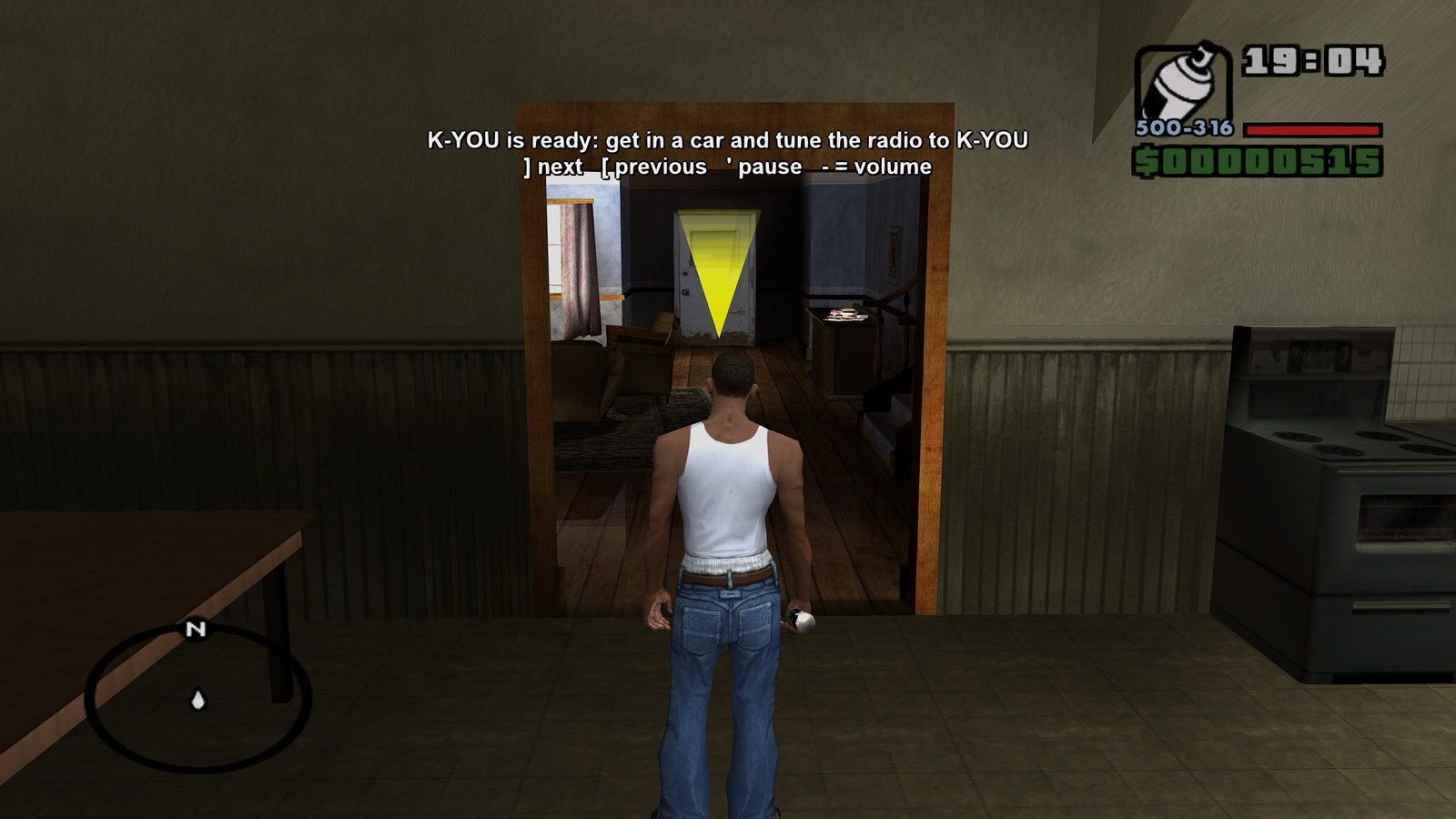
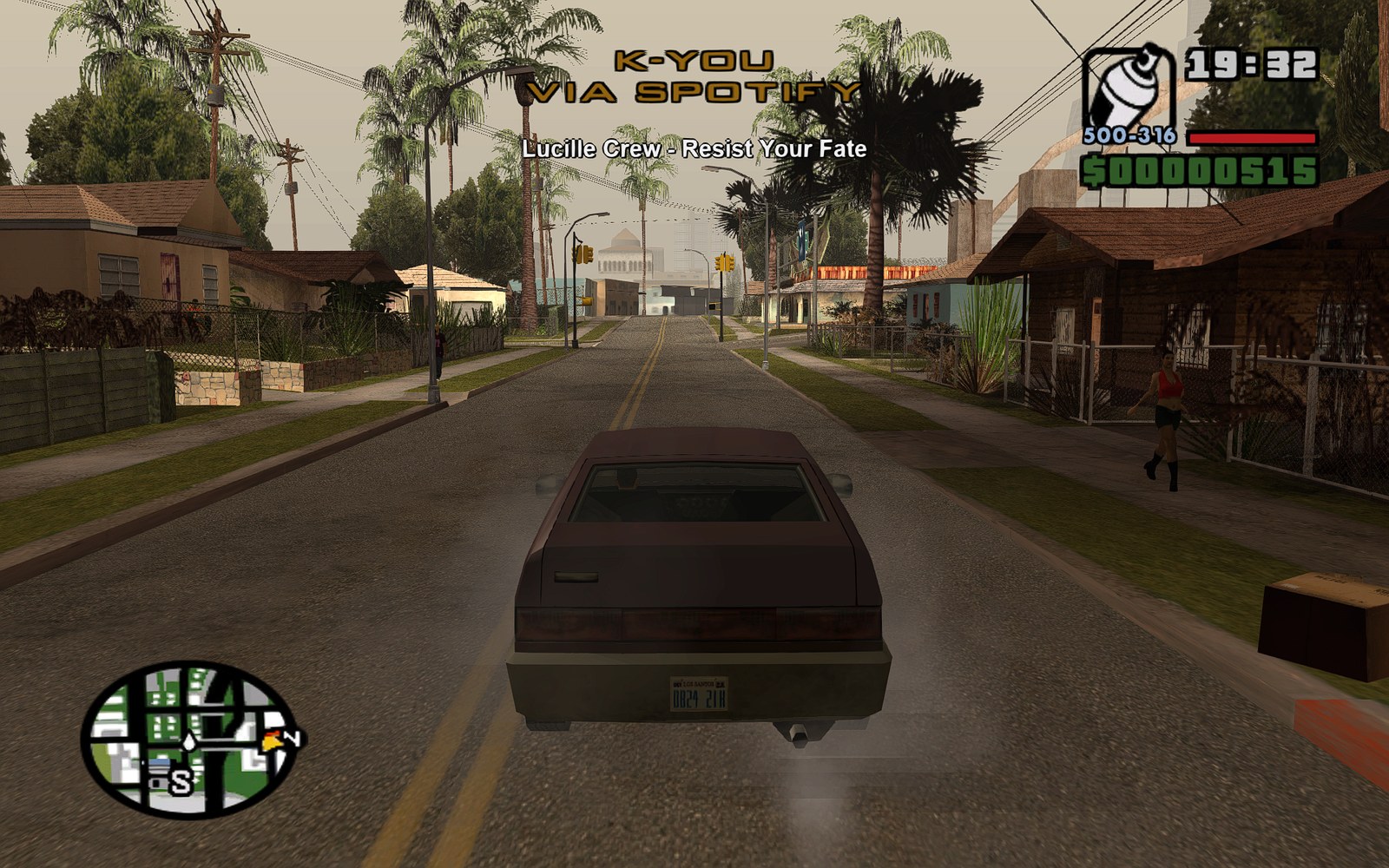
- 2Start the game. A few seconds in, a hint appears: K-YOU is ready.
- 3Get in a car and scroll the radio to K-YOU.
Keys, while you're on K-YOU
- ]Next
- [Previous
- 'Play / pause
- -Volume down
- =Volume up
Settings
After the first run, the settings file is moonloader\config\k-you.ini. Edit it in Notepad, with the game closed.
| Next / Previous / PlayPause / VolumeDown / VolumeUp | Your keys. Any letter, digit, F1–F24, NUMPAD0–9 and most symbols. |
| TuneInDelayMs | How long the radio rests on K-YOU before the music starts. Default 600. |
| ShowSongNames | Song name on screen. 1 = on. |
| PauseOnAltTab | Pause while the game is in the background. 1 = on. |
| AutoTuneOnEnter | 0 = the game picks the station. 1 = stay on K-YOU if you were on it (default). 2 = always start on K-YOU. |
| DuckDuringDialogue | Lower the music while characters talk. 1 = on. |
| Volume | K-YOU volume, in percent of your player's own volume. The - and = keys change it in game and save it here. Default 100. |
| EmergencyVehicles | Police cars, ambulances, fire trucks and other emergency vehicles have no radio in the game. 0 = stay quiet in them, like the game (default). 1 = keep playing K-YOU if you were listening to it. |